Automating with iOS Shortcuts
Build shortcuts that check you in with one tap, check you in automatically when you arrive somewhere, and log quick notes from your home screen.
Looking for Android? See the Tasker guide.
Before you start
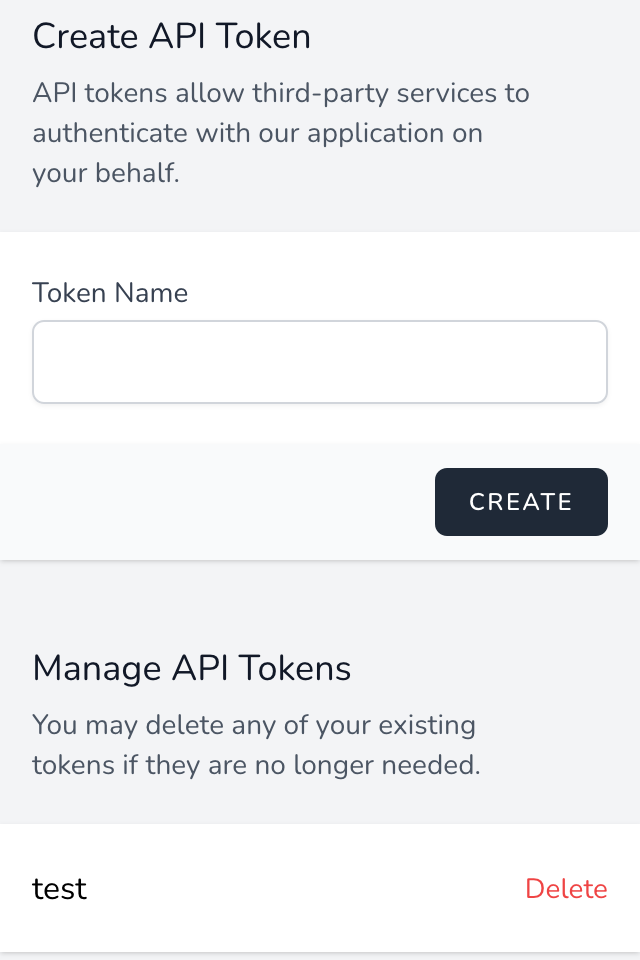
Every example talks to the When and What API, so you'll need an API token first.
1. One-tap "Check in here"
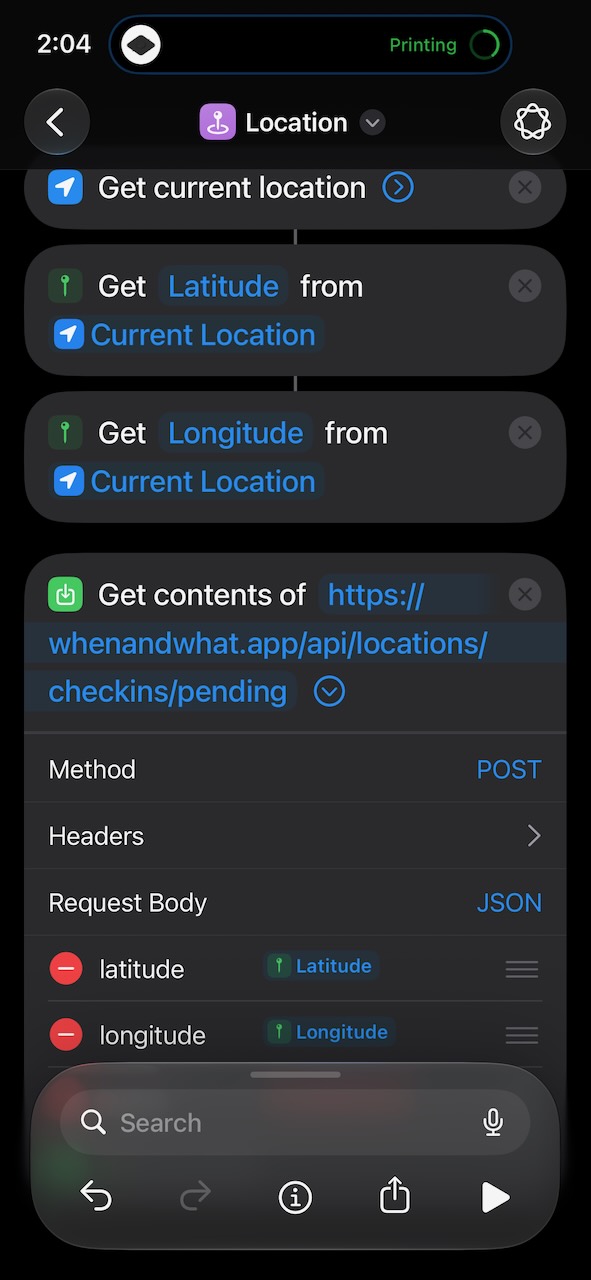
Sends your current location to When and What. Add it to your home screen, Control Centre, Action button, Apple Watch, etc. for the quickest possible check-in.
https://whenandwhat.app/api/locations/checkins/pending.Authorization = Bearer YOUR_TOKEN and Accept =
application/json.latitude → Current Location › Latitude longitude → Current Location › Longitude
Tip: To add a note each time, put an
Ask for Input action before the request and add a note field
set to Provided Input.
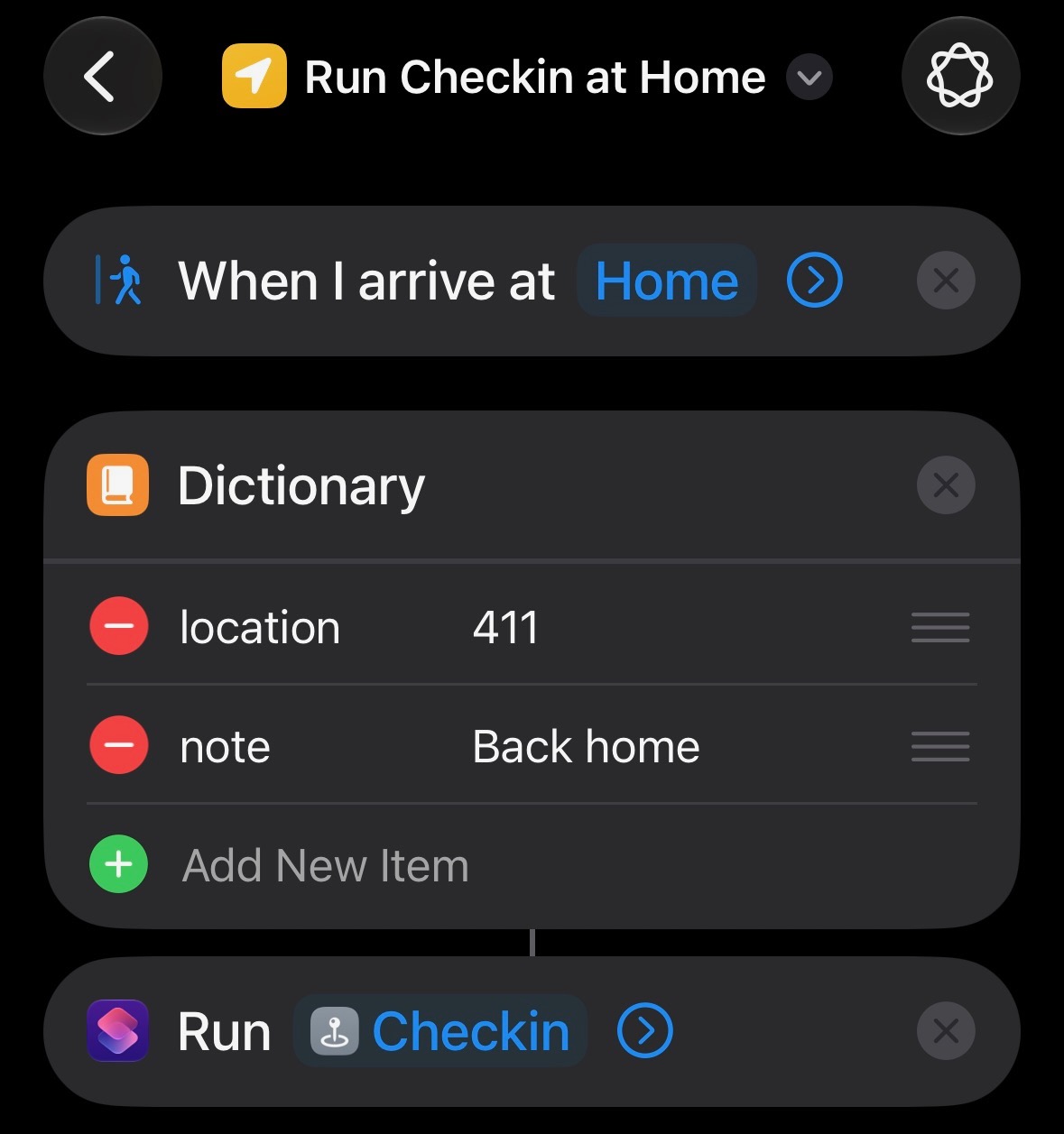
2. Check in automatically when you arrive
Create a shortcut to checkin to the given location. Here's an example to copy and paste in your access token: iOS Shortcut
Pair the shortcut above with a personal automation so places you visit often — the gym, the office, a favourite café — are logged without you touching your phone.
If the URL is https://whenandwhat.app/locations/437, your location ID is 437
Next build the shortcut for this location
Tip: You can also trigger the same shortcut from an NFC tag (stick one by your front door or desk) or when your phone joins a particular Wi-Fi network.